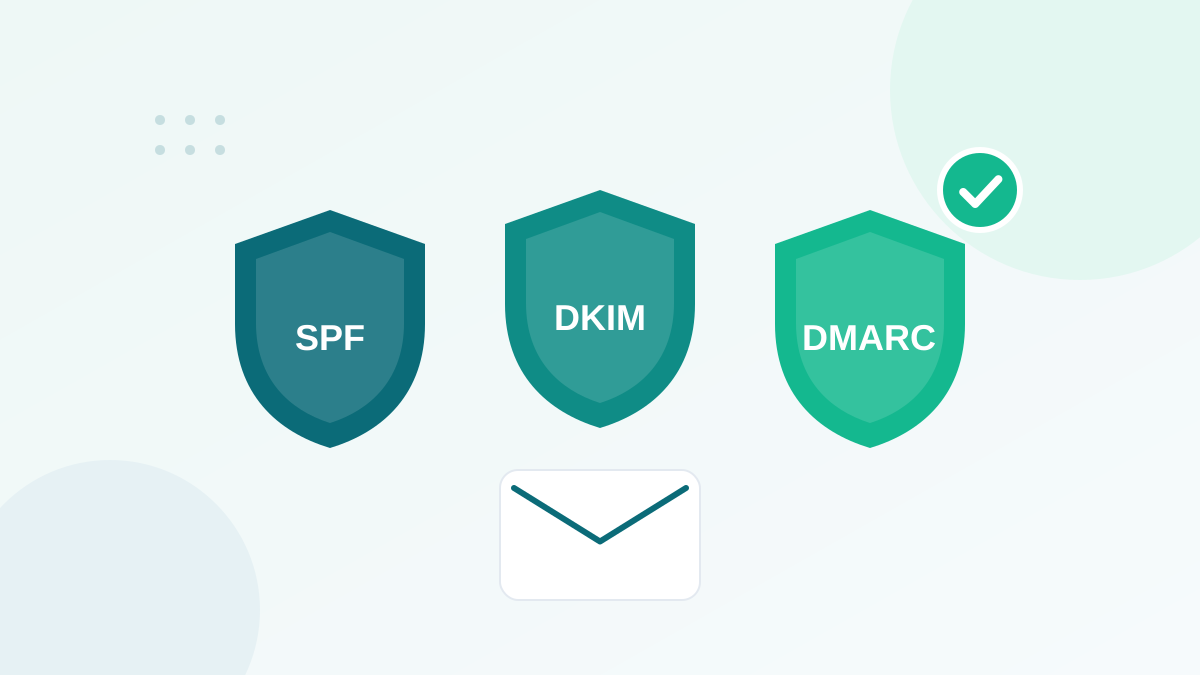
Key takeaways
- The selector is the s= value in the DKIM-Signature header of any email you sent.
- The public key lives at selector._domainkey.yourdomain.com.
- Google Workspace uses "google" by default; Microsoft 365 uses selector1 and selector2.
- DMARC aggregate reports also show the selectors receivers saw.
- You cannot discover every selector of a domain from DNS; always start from a real message.
In this guide
- What a DKIM selector is
- Why you cannot simply list all selectors
- Method 1: Read the selector in the email header (most reliable)
- Method 2: Check the selectors common providers use
- Method 3: Use your DMARC reports
- How to check the public key once you have the selector
- Selectors and key rotation
- Key length
- Worked example: auditing DKIM for a small business
- Where the selector appears in other tools
- Quick reference: where to open full headers
- Troubleshooting checklist
- Frequently asked questions
What a DKIM selector is
DKIM works with a pair of keys. Your sending service keeps a private key and signs every email with it. The matching public key is published in DNS so receivers can verify the signature. Because a domain can use several keys at the same time (one per sending service, or several for rotation), each key is published under a name called a selector.
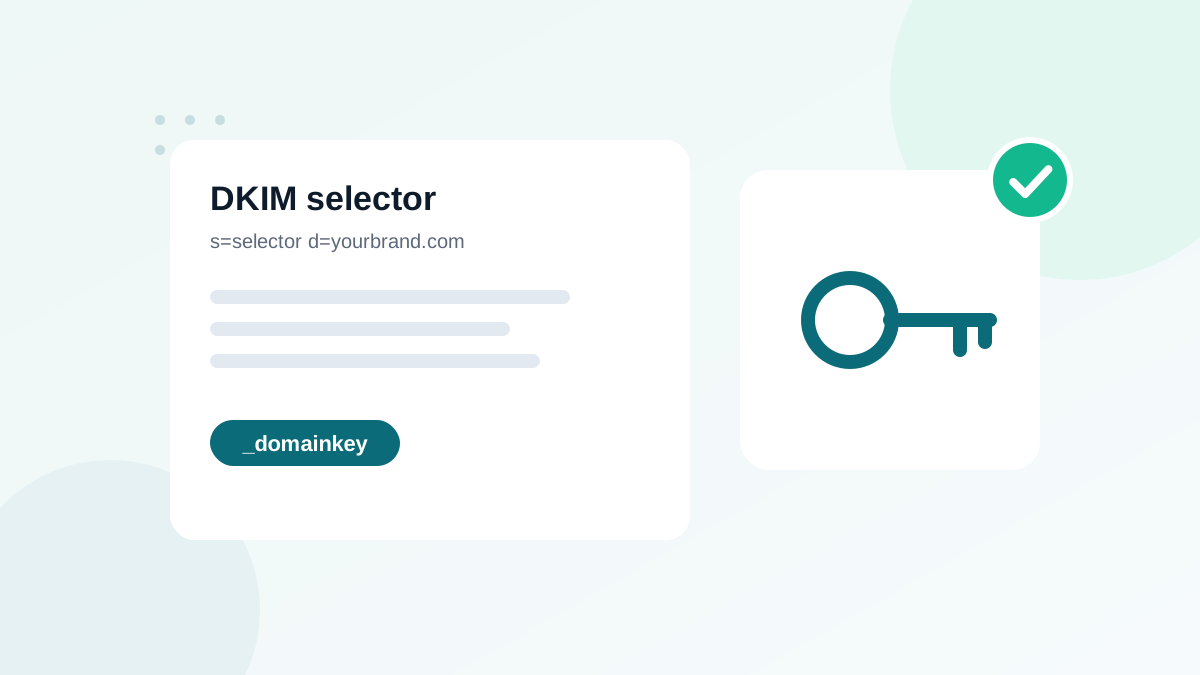
The public key always lives at this address:
[selector]._domainkey.[domain]For example, with the selector google and the domain yourbrand.com, the key is at google._domainkey.yourbrand.com.
You need the selector to check that a DKIM key exists, to troubleshoot failures, or to verify a setup an agency or a previous team left behind.
Why you cannot simply list all selectors
DNS does not offer a reliable way to list every name under _domainkey. Selectors can be any word, and you can only query a selector if you already know its name. This is why the best method always starts from a real email that was signed.
Method 1: Read the selector in the email header (most reliable)
- Send yourself an email from the service you want to check: a test campaign from your email platform, an email from your mailbox, a notification from your shop.
- Open the full headers. In Gmail: open the message, click the three dots, choose "Show original". In Outlook on the web: open the message, choose the three dots, then "View", then "View message source". In Apple Mail: "View", then "Message", then "All Headers".
- Find the
DKIM-Signatureheader. It looks like this:
DKIM-Signature: v=1; a=rsa-sha256; c=relaxed/relaxed;
  d=yourbrand.com; s=s1; t=1762041599;
  h=from:to:subject:date:message-id;
bh=...; b=...d=is the signing domain:yourbrand.com.s=is the selector:s1.
So the public key for this signature is at s1._domainkey.yourbrand.com.
If d= shows your email platform's domain instead of yours, DKIM passes but is not aligned with your From address. DMARC then depends on SPF alone. This is one of the most common setup problems; see SPF, DKIM and DMARC explained.
You may see several DKIM-Signature headers in one email: one from your domain and one from the platform. That is normal. What matters is that one of them uses your domain.
Method 2: Check the selectors common providers use
Some providers use well-known default selectors. These are a good starting point, but always confirm with a header, because settings can be customized.
| Provider | Typical selector(s) | Record type |
|---|---|---|
| Google Workspace | google (customizable at setup) | TXT |
| Microsoft 365 | selector1 and selector2 | CNAME pointing to Microsoft |
| Email marketing platforms | Shown in the platform's domain authentication page | Often CNAME, sometimes TXT |
| Transactional email services | Shown in the service's sender or domain settings | Often CNAME |
For any platform, the domain authentication or sender settings page lists the exact DNS records it expects, including the selector. That page is the official source.
Method 3: Use your DMARC reports
DMARC aggregate reports include, for each source, the DKIM domain and the selector the receiver saw:
<dkim><domain>yourbrand.com</domain><selector>s1</selector><result>pass</result></dkim>This is useful to discover selectors of services you did not know were sending. My guide on reading DMARC reports explains the full structure.
How to check the public key once you have the selector
- Query the DNS name
selector._domainkey.yourdomain.comwith any DNS lookup tool, asking for TXT records (and CNAME if nothing is returned). - Read the result. A valid key looks like
v=DKIM1; k=rsa; p=MIIBIjANBgkqh.... The longp=value is the public key. - Check for common problems listed below.
| What you see | Meaning | Fix |
|---|---|---|
| No record found | Wrong selector, wrong domain, or record never published | Confirm with a header, then publish the record from your provider |
| CNAME to a name that does not resolve | The provider side is not activated | Finish activation in the provider's dashboard |
Empty p= | Key revoked on purpose | Normal after rotation; make sure the new selector is live |
| Key split or truncated | DNS panel broke a long value | Re-enter the record; some panels need the key in quoted chunks |
Duplicate _domainkey._domainkey in the name | Panel added the domain automatically | Enter only selector._domainkey as the host |
Selectors and key rotation
Good practice is to rotate DKIM keys periodically, for example once or twice a year, or after a security incident. Rotation is exactly why selectors exist: you publish a new key under a new selector, switch signing to it, wait until mail signed with the old key has been delivered, then revoke the old key by publishing an empty p= value or deleting it.
Many platforms rotate keys for you when you use CNAME records pointing to their DNS. That is one reason they prefer CNAMEs: you set them once, and the provider manages keys behind them.
Key length
Use 2048-bit RSA keys when you have the choice. 1024-bit keys still validate but are considered weak. Some DNS panels struggle with long TXT values; if yours does, use the CNAME option if your provider offers one, or split the value into quoted strings as your DNS host documents.
Worked example: auditing DKIM for a small business
A business uses Google Workspace for mailboxes, an email marketing platform for newsletters and an online store for order confirmations. To audit DKIM, the team sends one email from each system to a Gmail address and reads the headers:
| System | d= value | s= value | Result |
|---|---|---|---|
| Google Workspace | yourbrand.com | Pass, aligned | |
| Email marketing platform | platform-domain.example | (platform selector) | Pass, not aligned |
| Online store | none | none | No DKIM signature |
Two fixes come out of this ten-minute audit: authenticate the domain in the email platform so it signs with yourbrand.com, and enable DKIM in the store or send its notifications through an authenticated service. Once both are done, DMARC can pass for every stream, and the domain is ready for stricter policies.
Where the selector appears in other tools
- Header analyzers: pasting raw headers into an analyzer extracts
d=ands=automatically and checks the key. - Your DNS zone: any record whose name ends in
._domainkeyshows a selector already published; the part before._domainkeyis the selector. - Platform documentation: the domain authentication page always lists the expected DKIM host names.
Reading your DNS zone is especially useful when taking over a domain from a previous agency: old selectors often reveal tools nobody remembers.
Quick reference: where to open full headers
| Mail client | Path |
|---|---|
| Gmail (web) | Open the message, three dots next to Reply, "Show original" |
| Outlook on the web | Open the message, three dots, "View", "View message source" |
| Outlook desktop | Open the message, "File", "Properties", "Internet headers" |
| Yahoo Mail | Open the message, "More", "View raw message" |
| Apple Mail | "View", "Message", "All Headers" |
Troubleshooting checklist
- Selector and signing domain read from a real, recent email
d=matches your From domain (or its parent, with relaxed alignment)- Public key found at
selector._domainkey.domain - Header shows
dkim=passfor your domain - Every sending service checked, not only the main one
- DMARC reports confirm DKIM passes for each source
If DKIM passes but mail still bounces, look at the exact error: Gmail 550 5.7.26 and Outlook 550 5.7.515 both point to authentication or alignment issues that this checklist helps you solve.
Frequently asked questions
Where is the DKIM selector in an email header?
Open the original message and find the DKIM-Signature header. The selector is the value after s=, and the signing domain is the value after d=.
Can a domain have several DKIM selectors?
Yes, and it usually does. Each sending service has its own selector, and some providers use two to rotate keys.
Why does my DKIM lookup return nothing?
Either the selector or domain is wrong, the record was never published, or it is a CNAME pointing to a record that does not exist. Check the exact name and wait for DNS propagation.
Is the DKIM selector secret?
No. The selector and public key are public by design. Only the private key, held by your sending service, must stay secret.
What key length should DKIM use?
2048-bit RSA keys are the current recommendation. 1024-bit keys still work but are considered weak.